How to Cancel Your Calpace Subscription
We understand that needs can change, and we've made it easy for you to cancel your subscription at any time. When you cancel, you will not be billed again, and you will continue to have access to all your paid features until the end of your current billing period.
This guide will walk you through the entire cancellation process.
Step 1: Navigate to Your Billing Settings
First, you need to access the section where your subscription is managed.
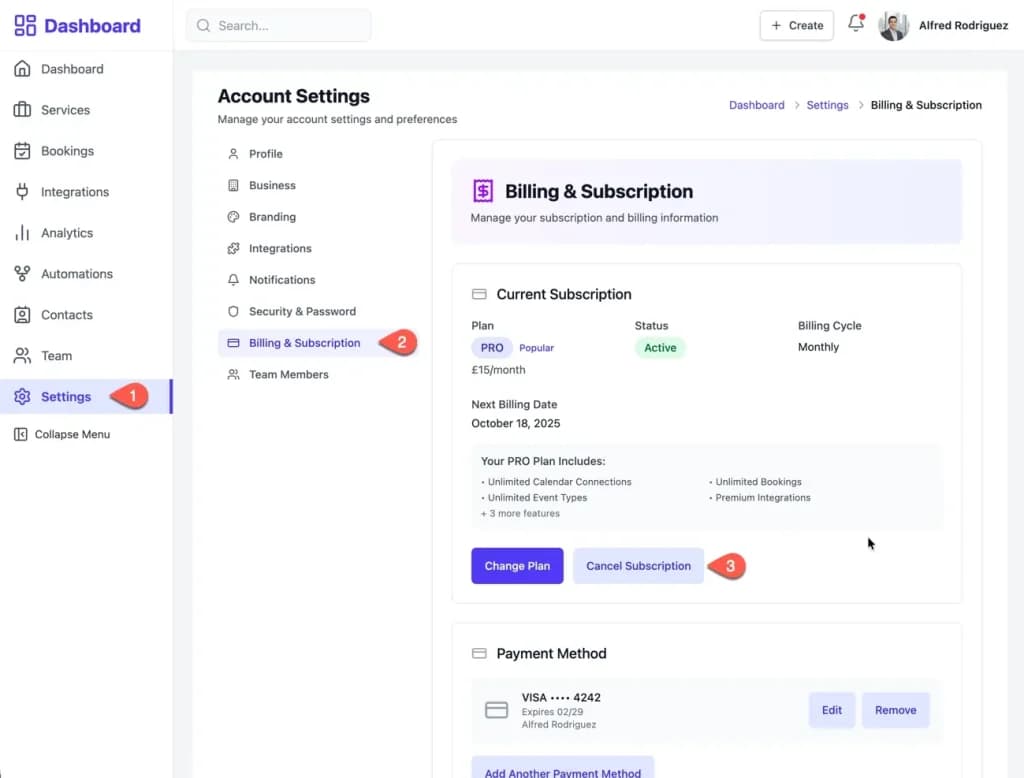
- From your main dashboard, click on Settings in the left-hand navigation menu.
- In the Account Settings menu, select the Billing & Subscription tab.
Step 2: Initiate the Cancellation
On the Billing & Subscription page, you will see details about your current plan.
- In the "Current Subscription" section, click the Cancel Subscription button.
Step 3: Confirm Your Cancellation
A confirmation pop-up window will appear to ensure you want to proceed.
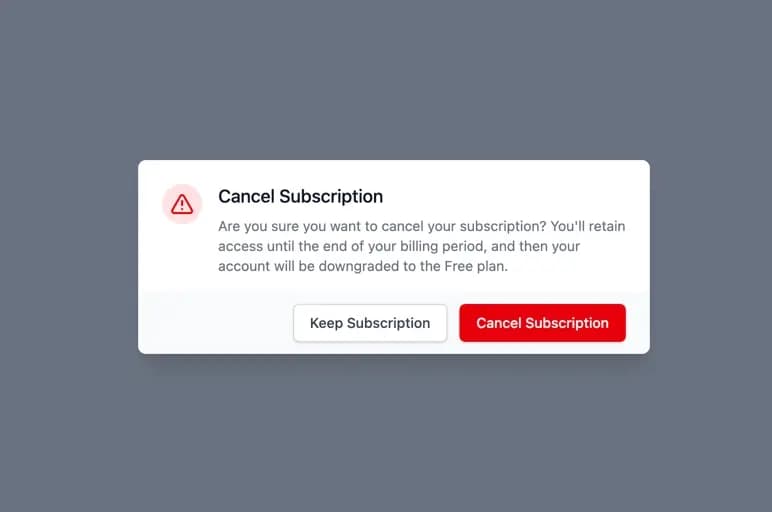
- The message will confirm that you will retain access to your paid features until the end of your current billing period, after which your account will be downgraded to the Free plan.
- To finalize the process, click the red Cancel Subscription button. If you've changed your mind, you can click "Keep Subscription."
What to Expect After You Cancel
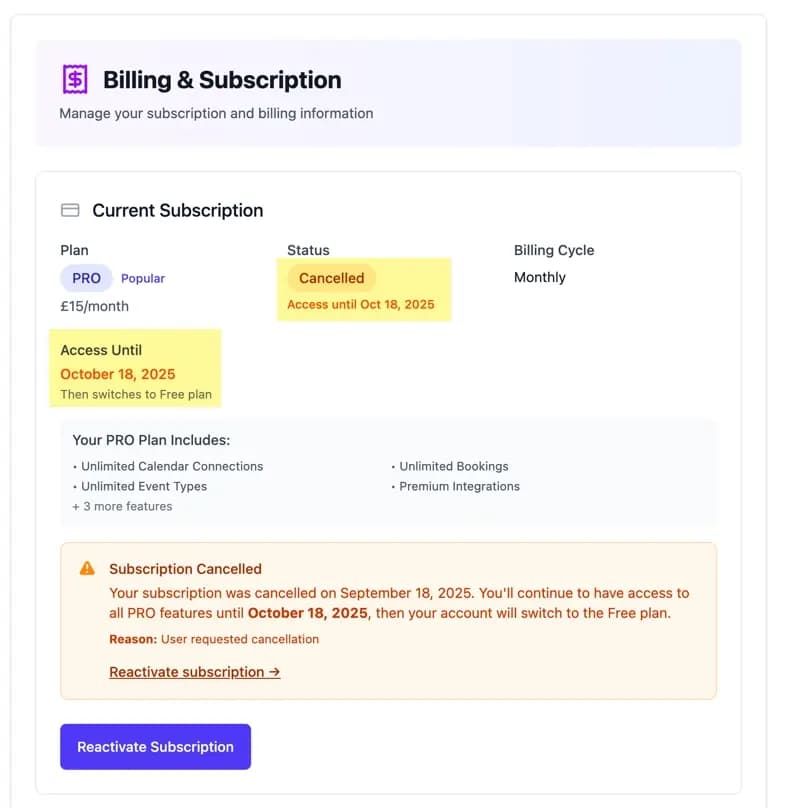
Once you've confirmed the cancellation, you will be returned to the Billing & Subscription page, which will now display the updated status of your account.
Here’s what you’ll see:
- Status: Your plan status will now be marked as Cancelled.
- Access Until: A new field will show the exact date your access to paid features will end (e.g., "Access until Oct 18, 2025"). This is the final day of your current paid billing cycle.
- Confirmation Notice: A clear message will confirm the date you cancelled and reiterate that your account will switch to the Free plan after the access period ends.
After this date, you will not be charged again, and your account will be seamlessly downgraded. All your data, such as contacts and settings, will be safely kept in your account under the Free plan.
Changed Your Mind? How to Reactivate
If you cancel by mistake or decide you want to continue with your subscription before your access ends, you can easily reverse the cancellation.
Simply return to the Settings > Billing & Subscription page and click the Reactivate Subscription button. This will resume your original billing cycle.